Virtual Camera for OBS, Streamlabs, Meld Studio, Zoom, Discord & more
Download: app.streamfog.com
Quick Setup (3 Minutes)
1. Install & Sign In
Download and run the installer from app.streamfog.com.
Launch Streamfog
Sign in with Twitch, Google, or Email.
Chose your camera in the right panel
2. Choose Streamfog in Your Streaming/Video App
In the app you’re using, select Streamfog Virtual Camera:
OBS / Streamlabs / Meld Studio → Add Video Capture Device → Streamfog Virtual Camera
Zoom → Settings → Video → Camera → Streamfog Virtual Camera
Discord → User Settings → Voice & Video → Camera → Streamfog Virtual Camera
If your scene previously used your hardware camera, switch it to Streamfog Virtual Camera. Streamfog ingests your real camera, adds effects, and outputs a single clean feed.
3. Go wild with AR effects
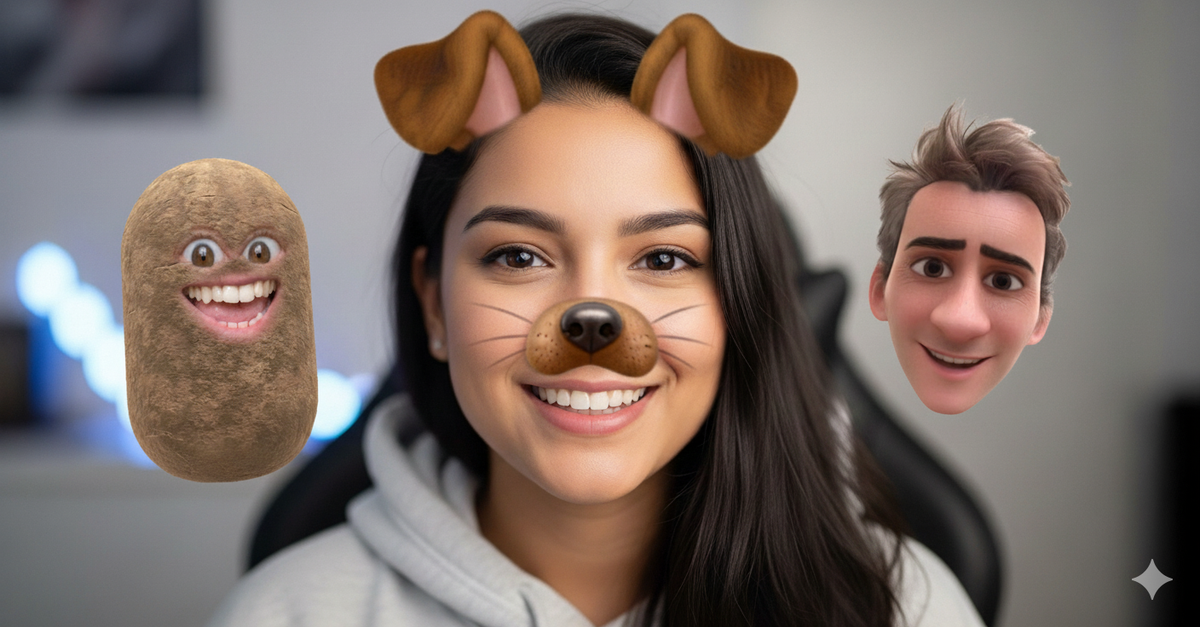
Browse 300+ Snap Camera Kit lenses inside Streamfog:
Face Filters: classics, distortions, reactions
Visual Effects: particles, lighting, environment
Hair & Beard: RGB color changes, style swaps
Bodywear & Costumes: outfits, accessories
Face Masks: decorative masks with tracking
VTube: 2D/3D avatars
Beauty: makeup, smoothing, touch-ups
Headwear: hats, crowns, helmets
Art Styles: anime, B&W, oil paint
Tip: 1280×720 is a great quality/performance balance. You can also enable Efficient Mode (below) to let Streamfog optimize resolution automatically.
4. (Optional) Make It Interactive
The streaming market is oversaturated. What makes Twitch special? Interaction. Nothing beats viewers directly controlling your augmented reality:
Twitch Extension: let viewers trigger lenses without leaving Twitch (supports free or Bits, with cooldowns and a request queue).
Alerts: auto-trigger lenses on follow/sub/raid/bits.
Channel Points: map rewards to effects.
StreamDeck / streamer.bot: hotkeys and automation.
Three Ways to Get Custom AR:
Modified Lenses: Adjust parameters on existing effects (colors, intensity)
Upload Your Own:
Lens Studio projects (we’ll convert and assign privately)
AR animations (ZIP with foreground.webm/background.webm)
Commission Custom AR: Order through “Your Custom AR” section in-app
Troubleshooting
Virtual camera not appearing in your app?
Confirm Streamfog is running (check the system tray).
In your target app, choose Streamfog Virtual Camera (not the hardware cam).
Restart the target app after first installing Streamfog (some apps cache device lists).
Camera busy / black feed
Close other apps that might be using the camera (Discord, Zoom, Teams).
In Streamfog, verify your physical camera shows a preview.
Windows privacy: Settings → Privacy & security → Camera → allow access.
Stutters or high CPU
Turn on Efficient Mode in Streamfog (automatically lowers resolution as needed).
Optionally set camera to 1280×720 or 640×480.
Reduce simultaneous layered effects if you’ve stacked many.
Alerts not firing
Ensure you’re signed in (Twitch/Google/Email) inside Streamfog.
Verify the Streamfog Twitch Extension is installed and enabled.
Check cooldowns/queue and confirm lenses are assigned to events.